HTTPS vs HTTP — Why the Padlock Icon Actually Matters
HTTPS vs HTTP — Why the Padlock Icon Actually Matters
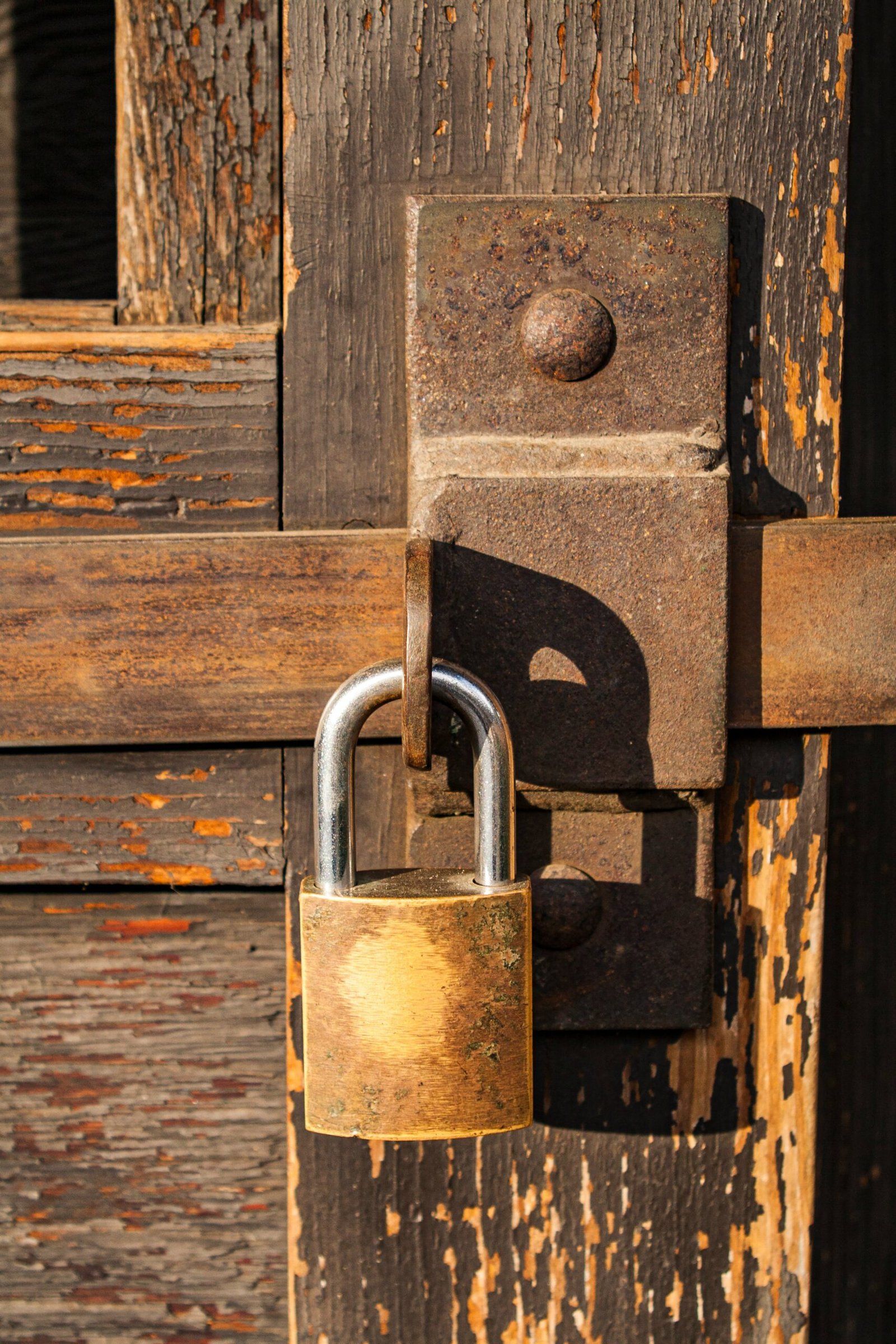
You have seen the padlock icon in your browser’s address bar thousands of times. But do you know what it actually means and — more importantly — what it does not mean? The difference between HTTP and HTTPS is fundamental to web security, and understanding it helps you make smarter decisions about which websites you trust with your data.
HTTP vs HTTPS — The Core Difference
| Feature | HTTP | HTTPS |
|---|---|---|
| Full name | HyperText Transfer Protocol | HTTP Secure |
| Encryption | None — data sent in plaintext | TLS encryption — data encrypted in transit |
| Port | Port 80 | Port 443 |
| Authentication | No server verification | SSL/TLS certificate verifies server identity |
| Data integrity | Data can be modified in transit | Tampering detected and prevented |
| SEO impact | Google ranks lower | Google ranking signal — preferred |
| Use case | Should not be used for any sensitive content | Required for all modern websites |
How HTTPS Works — TLS Handshake Explained
When you visit an HTTPS website your browser and the server perform a TLS (Transport Layer Security) handshake to establish a secure encrypted connection:
- Client Hello — Your browser sends supported TLS versions and cipher suites to the server
- Server Hello — Server responds with chosen TLS version, cipher suite, and its SSL certificate
- Certificate Verification — Browser verifies the certificate is valid, not expired, and signed by a trusted Certificate Authority (CA)
- Key Exchange — Both parties exchange cryptographic keys to establish a shared secret
- Session Established — Symmetric encryption begins; all data between browser and server is now encrypted
What the Padlock Means — and Does NOT Mean
The Padlock DOES mean:
- Your connection to this website is encrypted
- Data in transit cannot be read by third parties on the network
- The server has a valid SSL/TLS certificate
- The certificate was issued by a recognized Certificate Authority
The Padlock does NOT mean:
- The website itself is legitimate or trustworthy
- The website is not a phishing site (phishing sites can and do use HTTPS)
- Your data is secure once it reaches the server
- The company behind the website is reputable
Over 80% of phishing websites now use HTTPS. The padlock only tells you the connection is encrypted — it says nothing about whether the site itself is malicious. A beautifully designed HTTPS phishing site can steal your credentials just as effectively as an HTTP one. Always verify the domain name carefully.
SSL Certificate Types
| Certificate Type | Validation Level | Trust Level | Who Uses It |
|---|---|---|---|
| DV (Domain Validation) | Proves domain ownership only | Basic | Blogs, small sites |
| OV (Organization Validation) | Verifies organization identity | Medium | Business websites |
| EV (Extended Validation) | Rigorous identity verification | High | Banks, e-commerce |
| Wildcard | Covers all subdomains | Varies | Large websites with subdomains |
Checking Certificate Details in Your Browser
- Click the padlock icon in the browser address bar
- Select Connection is secure or Certificate is valid
- View certificate details — check the organization name and issuing CA
- Verify the domain name exactly matches what you intended to visit
- Check the certificate expiry date — expired certificates are a red flag
Enable HTTPS-Only Mode in your browser settings. Firefox and Chrome both support this — they will automatically upgrade HTTP connections to HTTPS where available and warn you before loading any HTTP page. This adds a meaningful layer of protection with zero effort.
Key Takeaway
HTTPS is necessary but not sufficient for website security. It protects your data in transit — but always verify the domain name carefully before entering credentials. The padlock is a trust signal, not a guarantee. Combine it with careful URL verification and strong password hygiene for comprehensive protection.